Shows same-name access points
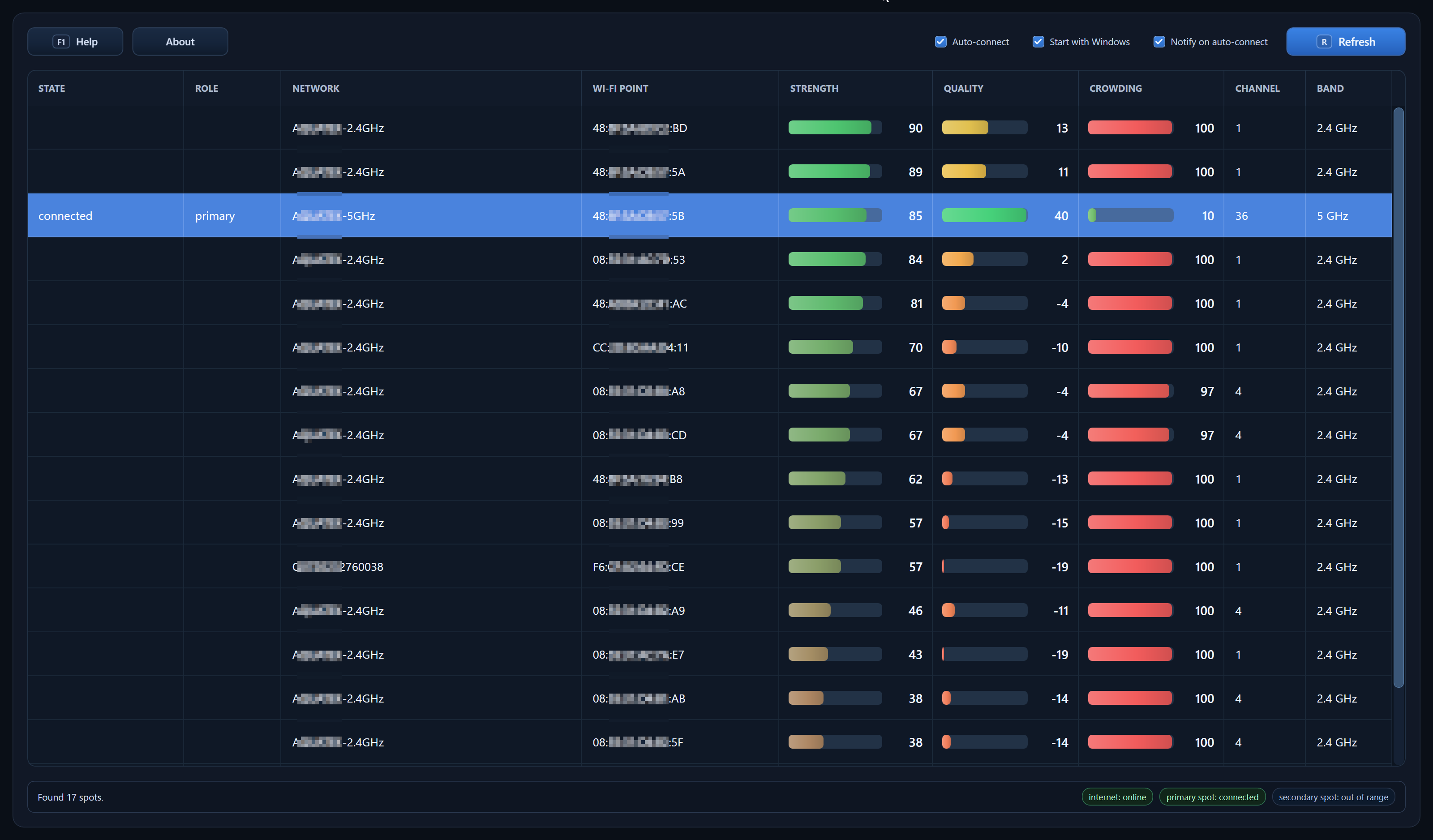
See each router, repeater, mesh node, or hotel access point separately, even when they share the same Wi-Fi name.
 Wiregazer
Free x86-64 Windows app
One Wi-Fi name can hide many routers, repeaters, mesh nodes, or hotel access points. Windows may cling to a weak or crowded one even when a better choice is nearby.
Wiregazer shows the individual access points behind the same Wi-Fi name, helps compare signal quality and crowding, and reconnects Windows to your chosen primary or backup access point automatically.
Free app for 64-bit Intel/AMD Windows PCs. ARM64 Windows is not supported yet.
Why it exists
In hotels, dorms, offices, apartment buildings, and mesh networks, several access points can broadcast the same Wi-Fi name. Windows often shows only the network name, then decides which access point to use.
That decision is not always good. Your PC can stay attached to a weaker access point, a crowded 2.4 GHz channel, or the wrong side of the building. Wiregazer separates those access points so you can see what Windows actually chose and tell it which one to prefer.
What it does
See each router, repeater, mesh node, or hotel access point separately, even when they share the same Wi-Fi name.
Signal strength is only part of the story. Wiregazer also helps you spot crowded or noisy access points.
Pick the access point you want Windows to prefer, plus a fallback for when you move or conditions change.
Leave Wiregazer running in the tray and let it switch back to your chosen access point instead of doing it manually.
Double-click a saved access point when you want to move Windows there immediately.
The current access point is highlighted, so you can tell whether Windows chose the one you expected.
Download
Choose your primary and backup access points once. Wiregazer keeps watch from the tray and reconnects automatically when needed.
For 64-bit Intel/AMD Windows PCs. ARM64 Windows is not supported yet.
Wiregazer can switch to access points behind Wi-Fi networks already saved in Windows. It does not replace your Wi-Fi adapter, drivers, or Windows connection settings.